
Explore by Topic
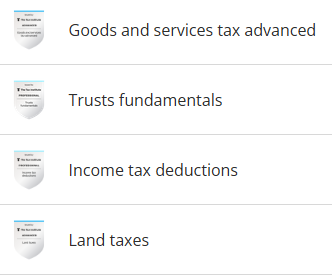
So, you’ve done the learning, completed the knowledge checks and earned your verified digital badge for a Tax Academy unit. Now it’s time to put your learning to work for your career.
As well as giving you knowledge and confidence in the workplace, learning through Tax Academy offers another big benefit for your career growth: the power of a digital badge.
Adding your Credly badge to LinkedIn takes just a few minutes, and the impact on your profile can be immediate. A verified badge doesn't just look good on your profile, it is a clickable, machine-readable signal that tells recruiters, hiring managers and peers exactly what you know and who verified it.
This guide walks you through how to put your badge on your LinkedIn profile.
You can also watch a short video walkthrough of the full process.
Adding your Credly badge to LinkedIn
Step 1: Access your badge
- Login to your Credly account, which you would have created when you purchased your Tax Academy microcredential.
- Navigate to your Dashboard.
- Locate and click on the badge you earned. It should be visible in the top right corner.
Step 2: Connect to LinkedIn
- At the top of your badge page, click the green Share button.
- This will open the Share Badge screen, which displays all available sharing options.
- If you have not previously connected your LinkedIn account to Credly, select Connect.
- You will be prompted to sign in to your LinkedIn account and authorise Credly to access your profile.
- This is a one-time setup that enables seamless sharing between the two platforms.
Step 3: Choose your sharing options
Once connected, you will see two options:
Add to profile
Adds your badge to the Licences and Certifications section of your LinkedIn profile, where it will sit permanently as part of your credentials.
Share to Feed
Publishes a post about your achievement to your LinkedIn newsfeed. If you select this option, you will have the opportunity to write a personal message to accompany it. This is a great way to let your network know you have been investing in your development and to start a conversation around your new credential.
You can select both options at the same time, or choose just one.
Step 4: Complete the process
Click Share to LinkedIn to complete the process.
If you selected Share to Feed, LinkedIn may display a popup asking if you want to share with your network. It is recommended to skip this additional prompt, as it will post a static image rather than the interactive badge link.
How your badge appears on LinkedIn
Your Tax Academy badge will be added to the Licenses and Certifications section of your LinkedIn profile.
The Tax Institute’s logo will appear alongside your credential information, so your network can see that . Viewers can click "See Credential" to access the full badge details on Credly, where they can verify the authenticity of your certification and view additional information such as skills acquired and earning criteria.
You can also share your Credly badge to LinkedIn using a mobile device. While Credly does not currently offer a dedicated mobile app, you can access your account through any mobile web browser. Simply log in at www.credly.com using your mobile browser and follow the same steps outlined above.
Need Assistance?
If you encounter any issues connecting your accounts or sharing your badge, please refer to Credly's online support resources or contact The Tax Institute on 1300 829 338 for assistance with your digital credential.